Raising your hourly rate: how to do it so your invoices stay correct
New rate from 1 September, but timesheets still use the old one. How to store rates with an effective date and what to do when an invoice at the lower rate has already gone out.

“From September the rate is €38.” Now what?
You’ve agreed a rate increase with your client: from 1 September it’s €38.00 per hour instead of €37.50. Now that number has to end up in the right places: on timesheets from that date onwards (not earlier), and on invoices.
If you track hours in Excel, or in software where the rate is just a single number, this is easy to get wrong: the September timesheets are still calculated at the old rate, the invoice adds up perfectly with the timesheets, and it’s a few euros too low. Everything matches, just not the agreement.
Example: 31 hours after the increase × €0.50 difference = €15.50 less on a single invoice. Across several clients and several months, that becomes a real amount.
Three rules for rates
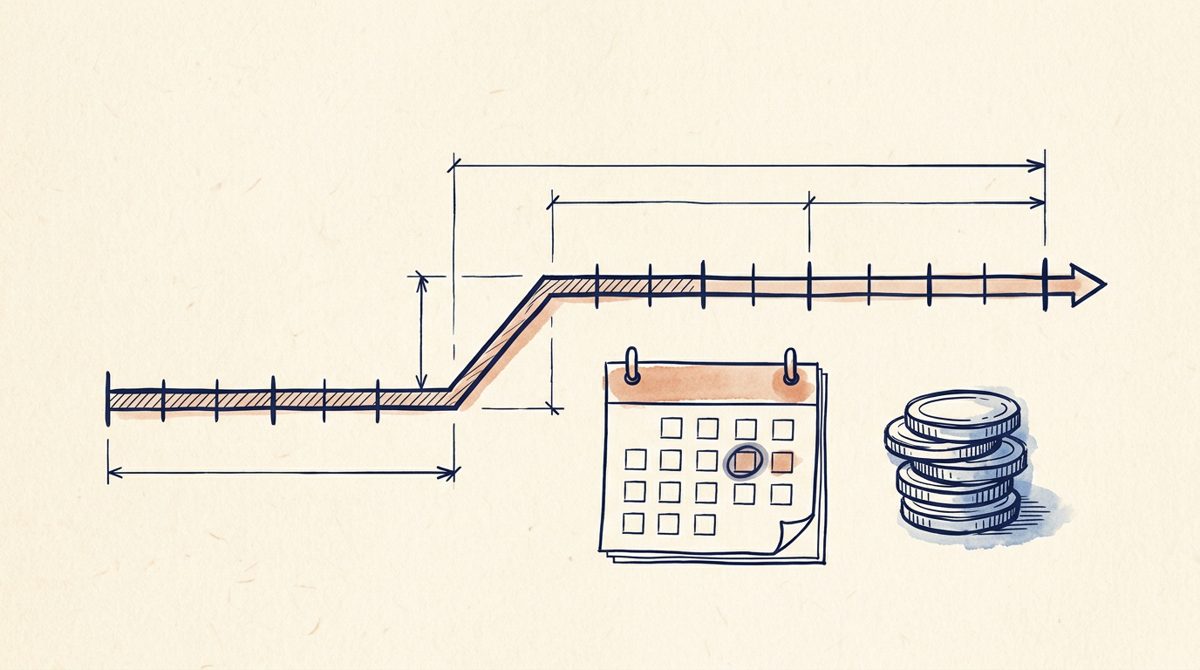
- A rate has a date. Not “€38”, but “€38 from 1 September”. The old rate applies up to that date and is never deleted.
- The day worked counts, not the day it was entered. A timesheet for Tuesday that is entered on Friday is calculated at Tuesday’s rate.
- A client gets its own rate if it differs from your general rate.
It’s also worth having something that compares timesheets with the price list on their date and raises an alarm when they drift apart. A frozen rate on a timesheet makes sense, because a document should remember what applied at the time it was created, but you need something to check it against.
The invoice already went out with the lower rate. What now?

You don’t quietly rewrite an invoice that has already been sent, especially if it went out via Peppol. There are two honest ways to handle it:
- A credit or debit note (creditnota / note de crédit), if the difference is large or the client expects one.
- A correction on the next invoice. The missing amount is added as a separate line with a description (“Rate correction, invoice FA-xx”), and in case of an overpayment, as a line with a minus sign.
Important: one correction per source invoice, so the same difference doesn’t reach the client twice.
How BuildHub AI does it
- The employee profile has a “Rates” tab: a history of changes with date, author and note, plus “New rate from…” for all clients or a selected one.
- Every timesheet takes the rate from the day worked and the client.
- Timesheets with a mismatch get a ⚖ marker, and the “Apply rate schedule” button fixes all uninvoiced ones at once.
- The invoice shows a banner if the linked timesheets have an understated rate, and how much money that is.
- “Schedule correction on next invoice” adds the missing amount automatically.
The rate list with effective dates is included in every plan. Try it in the free demo: buildhubai.com.
Related Articles

How to bill travel to site fairly so the kilometres add up
The same route can come out at 47 km one day and 35 km the next. Here's why, an…

Construction Recruitment: How to Find Workers Who Stay
Practical recruitment guide for construction. Where to find skilled workers, ho…

Client Communication – 5 Mistakes That Ruin Relationships with Investors
Discover the five most common communication mistakes made by construction contr…
Ready to optimize your construction business?
Join hundreds of construction companies using BuildHub AI